Tag & logic screens
The Node Views area (left rail) is where you author tags and logic. It has three tabs along the top — Flow Exploration, Signal River, and Tag Tree — and the Tag Tree is the one you’ll use most. This page names every control on it. For the concepts behind tags and scripts, see Everything is a tag and Logic & the Logic Cycle.
Node Views tabs
Section titled “Node Views tabs”| Tab | What it is |
|---|---|
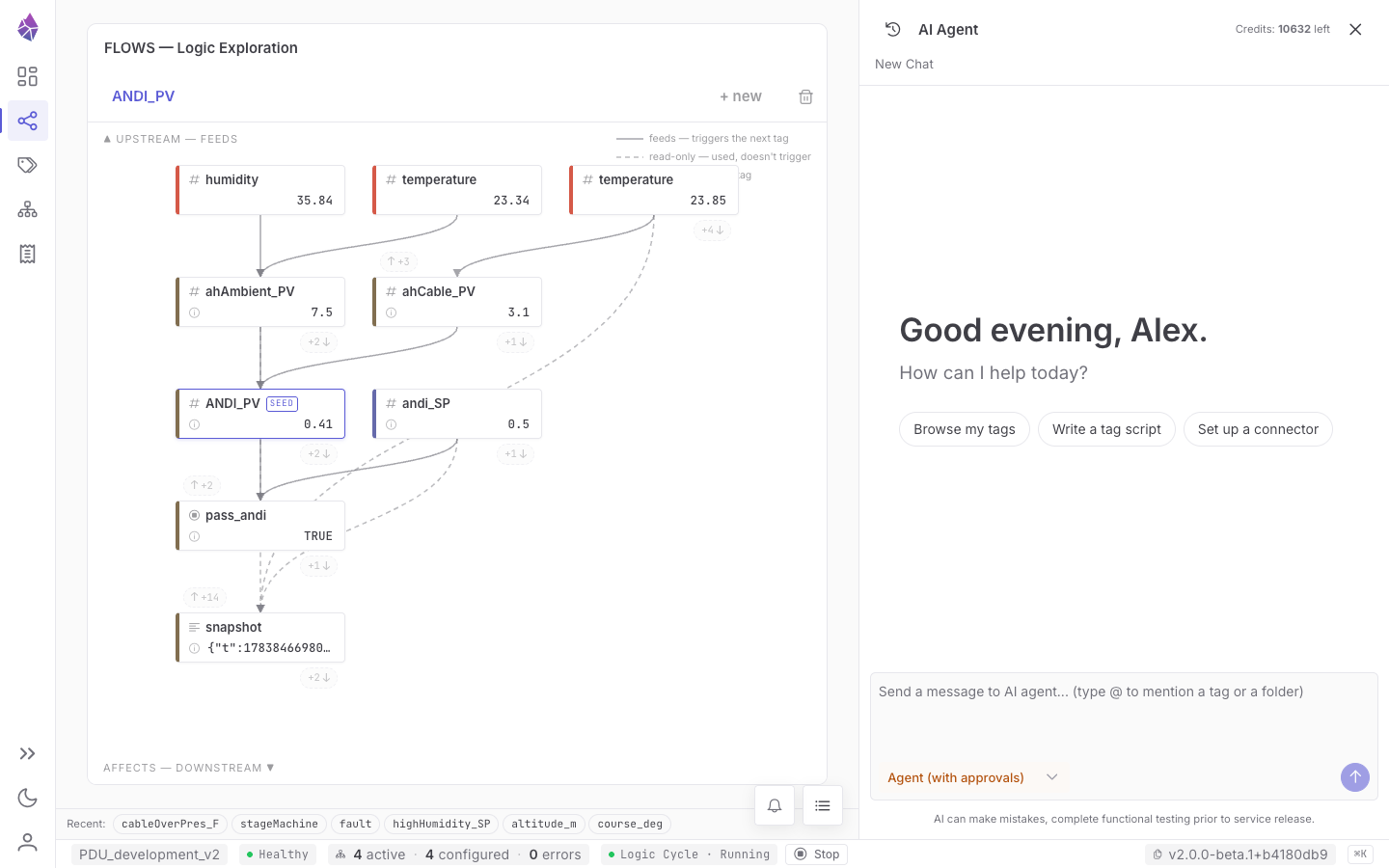
| Flow Exploration | A causal tracer — pick a signal and expand its upstream causes and downstream effects. |
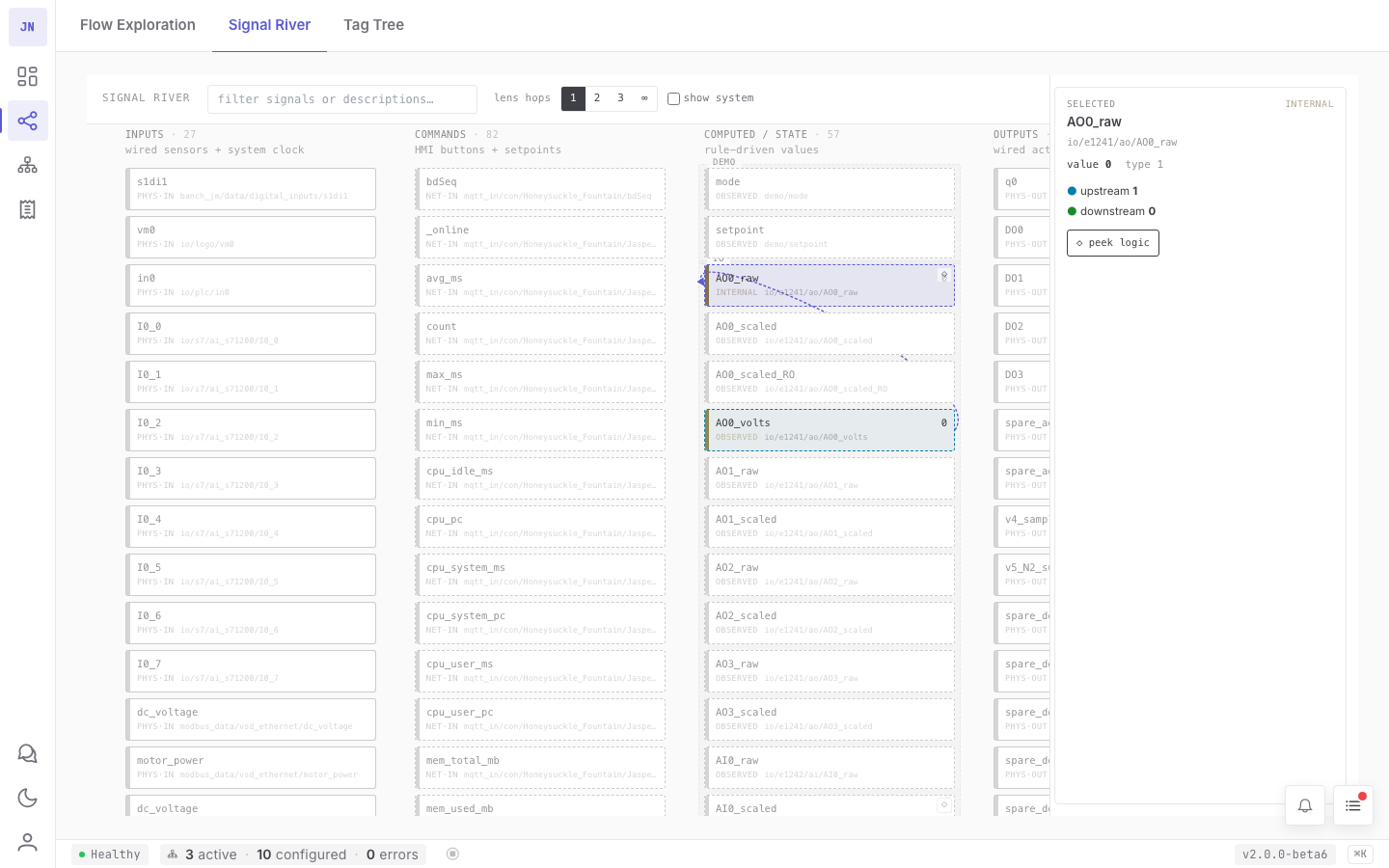
| Signal River | A whole-graph overview of the node’s signals. |
| Tag Tree | The two-pane tag browser and editor (below). |
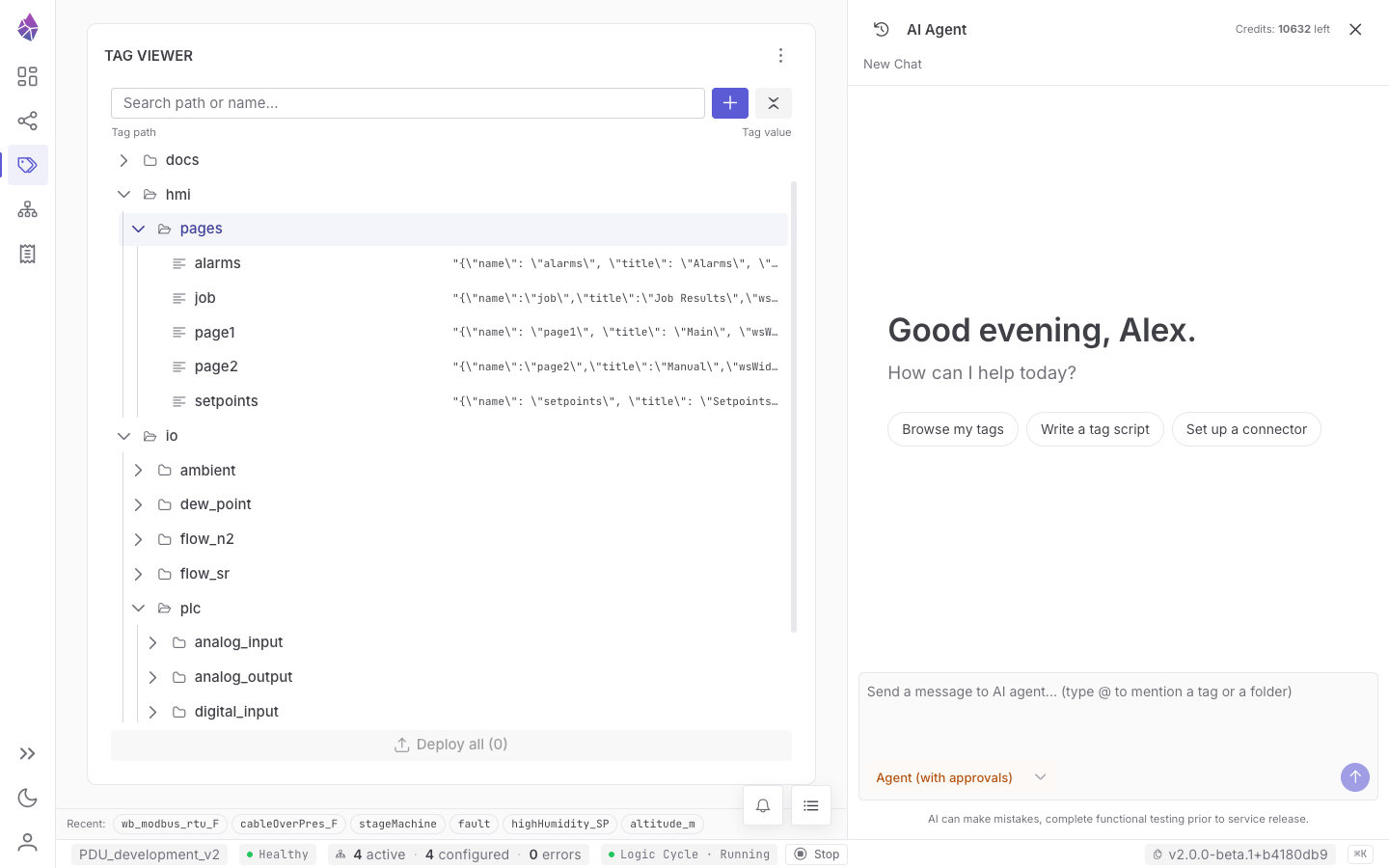
Tag Tree — the Tag Viewer (left pane)
Section titled “Tag Tree — the Tag Viewer (left pane)”| Control | What it is |
|---|---|
| Search path or name… | Filters the tree by path or tag name. |
| Recent chips | Recently opened tags — click to jump back. |
| Add tag (+) | Creates a new tag (you choose its path, name and value type). |
| Collapse all folders | Collapses the whole tree. |
| More actions (⋮) | In the panel header: Export tags (save a subtree to a file) and Import tags (load tags from a file). |
| Tag path / Tag value columns | The tree itself. Each row carries a type icon — folders show an open/closed folder glyph; leaves show their value type (number, boolean, text, bytes, any) — and tags with a script also show a code glyph (green = enabled, orange = disabled). Faint vertical indent guides mark each level. Single-click a folder (or its caret) to expand/collapse and deep-link it, VS Code-style; each tag shows its live value on the right. Click a tag to load it into Properties; right-click for a context menu; Ctrl-click for multi-select. |
Tag Tree — Properties (right pane)
Section titled “Tag Tree — Properties (right pane)”Selecting a tag fills the Properties pane, which has three tabs: Basic, Scripting, Stats.
Basic tab
Section titled “Basic tab”:::caution[Screenshot pending refresh] tag-tree.png predates the redesigned Basic tab and the new
Tag Viewer icons — a fresh capture is queued (see public/screenshots/README.md). The table below
describes the current layout. :::
The Basic tab is a status-first layout: a row of status icons up top, then a value card, the id, and the tag’s connector links.
| Element | What it is |
|---|---|
| Status icon row | At-a-glance state — plug (linked to a field connector), writer / sink / reader (role), and script (green = enabled, orange = disabled). Icons grey out when they don’t apply. |
| Value card | The tag’s current value, with quality shown as a coloured dot beside it (tooltip: good, stale, uncertain, unknown). The card’s head/foot show the value type, source (who last set it), and last update. For a boolean, a true/false Select + Save writes the value; other types use a Set value field + Save. |
| path / name (with copy) | A single id row — clicking the path segment copies the path; the trailing button copies the full tag id. |
| Connector Info | The per-link descriptor for the connector(s) bound to this tag (JSON-normalised). |
| Connector | The bound field connector(s) — monogram, type, id and role. Only IT/OT field connectors are listed (script and system pseudo-connectors are filtered out); a row links straight to that connector’s page. |
| Description (+ Save) | Free-text description; Save writes it. |
| Rename | Change the tag’s path/name (its durable id is preserved). |
| Duplicate | Create a copy. |
| Delete tag | Remove the tag (blocked, with a prompt, if other tags subscribe to it). |
| rid | The tag’s durable internal identity. |
Scripting tab
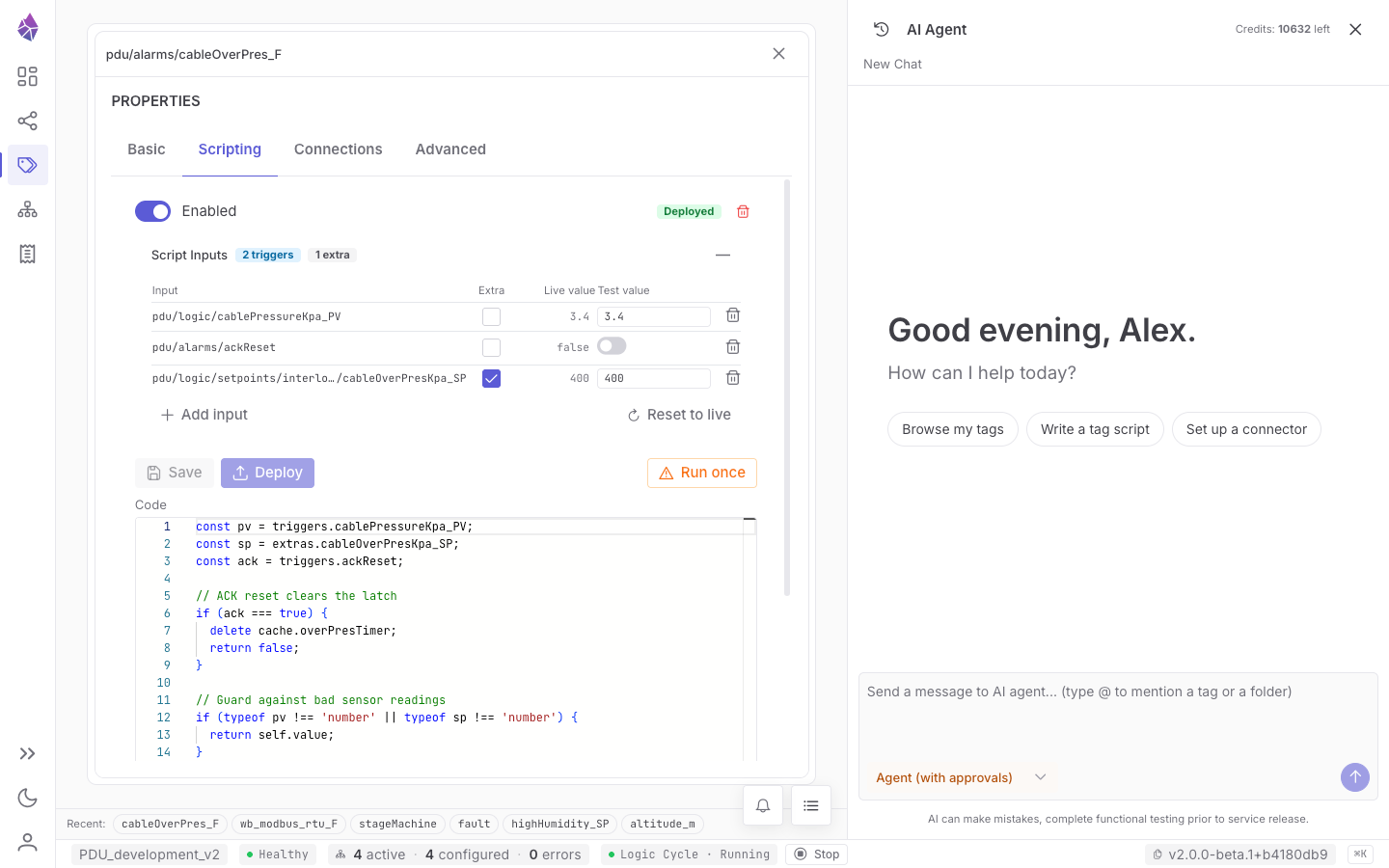
Section titled “Scripting tab”The editor for the tag’s logic.
:::caution[Screenshot pending refresh] tag-scripting.png predates the reworked Scripting tab
spacing and the new Run once action — a fresh capture is queued (see
public/screenshots/README.md). :::
| Control | What it is |
|---|---|
| Enabled toggle | Turns the script on or off. |
| Deployed / draft badge | Shows whether the live script matches the editor (a draft means unsaved/undeployed edits). |
| Delete (script) | Removes the script from the tag. |
| Code editor | The script body (a full code editor with highlighting and autocomplete). |
| Save | Saves your edits as a draft (not yet live). |
| Deploy | Makes the saved script live (atomically). Deploying or enabling a script does not run it — it runs on its next trigger (or Run once). |
| Run once | Executes the deployed script a single time, by hand, against live values — for a one-off recompute or a quick check. A green tick / red flag flashes on the button with the result. |
| Triggers (+ Add) | The tags whose changes run this script. |
| Extras (+ Add) | Read-only input tags that the script can read but that don’t trigger it. |
| Test table (Trigger / Live value / Test value) | Synthetic inputs to test the script with. |
| Run test | Runs the saved script against the test values without deploying — the live process is untouched. |
| Reset to live | Loads current live values back into the test inputs. |
| Average run time / Times run / Returned a value / Currently running / Triggered by | Live run statistics for the script. |
| Skip if already running | If on, a new run is dropped (with a warning) while the previous run is still in flight. On by default for new scripts; change the default under System Config → Script defaults. |
| Priority | The script’s execution priority. |
Stats tab
Section titled “Stats tab”A read-only view of the tag’s place in the dependency graph and its recent values.
| Section | What it shows |
|---|---|
| Recent values | A short history timeline (only if you’ve set the tag’s history depth above 1). |
| Triggers (n) | The tags that trigger this tag’s script, each with its live value. |
| Extras (n) | The script’s extra inputs, with live values. |
| Dependents (n) | The tags that depend on this tag (it triggers them), with live values — the downstream side of the chain. |
Flow Exploration & Signal River
Section titled “Flow Exploration & Signal River”Flow Exploration answers “what drives this value, and what does it affect?” — choose a signal and walk its causes and effects across the graph. Signal River is a whole-graph map for seeing structure at a glance. Both are read-only exploration views built on the same dependency graph the Stats tab uses.