
Connector screens
This page names every control on the connector screens. For the concepts (kinds, lifecycle, direction), see Connectors; for what each connector connects to, see the Connector catalog.
Connector Manager
Section titled “Connector Manager”:::caution[Screenshot pending refresh] connector-manager.png predates the LiDAR catalog card —
a fresh capture is queued (see public/screenshots/README.md). :::
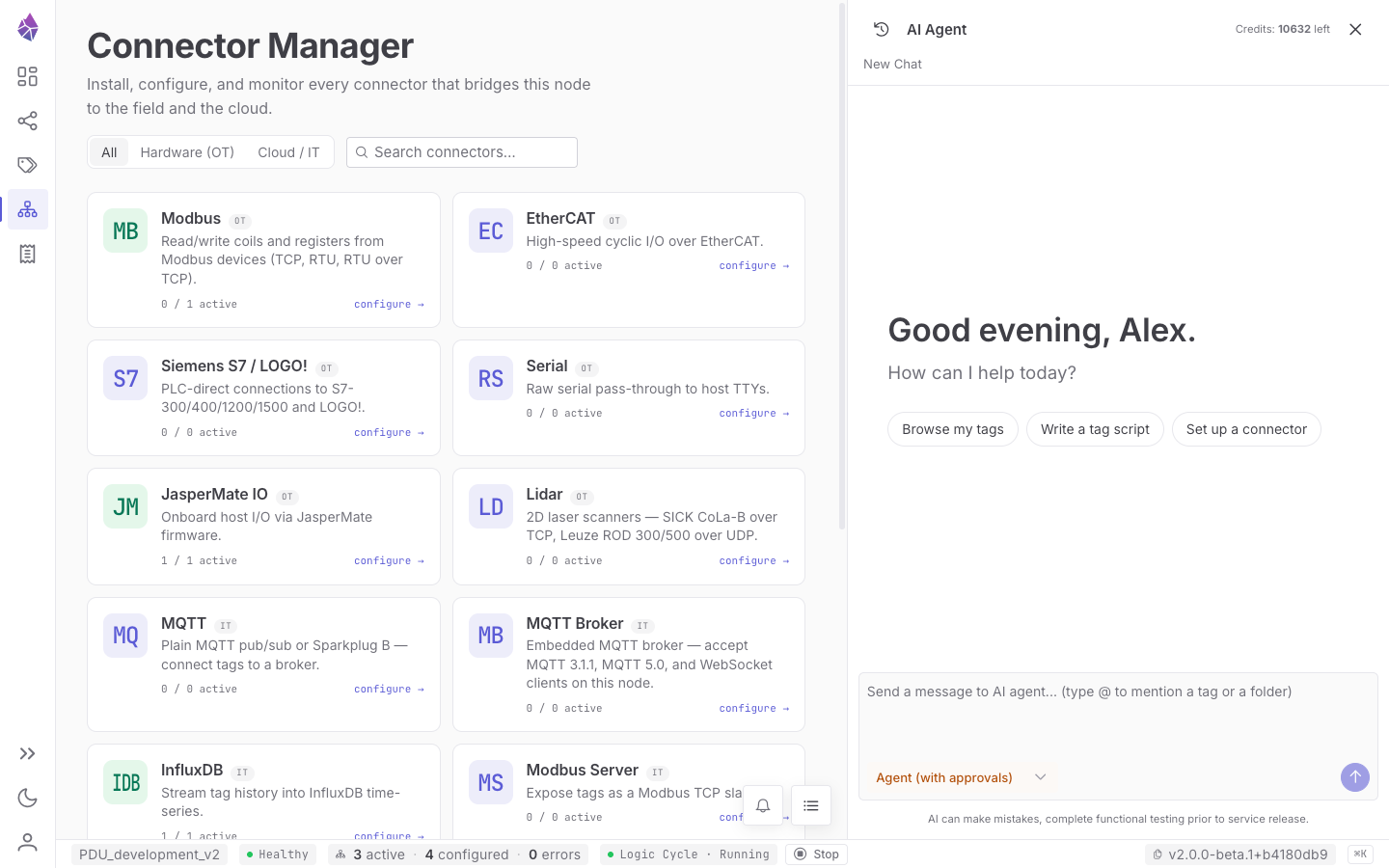
| Control | What it is |
|---|---|
| All / Hardware (OT) / Cloud / IT filter | Narrows the catalog by connector kind. |
| Search connectors… | Filters the catalog by name. |
| Catalog cards | One per connector type — icon, name, an OT/IT badge, a one-line description, an active / total instance count, and configure → to open the type’s page. |
| Instances table | Every configured instance across all types. |
Instances table columns
Section titled “Instances table columns”| Column | What it shows |
|---|---|
| Name | The instance id. |
| Type | The connector type, with its icon. |
| Status | A live status pill (Connected, Stopped, Error, …). |
| Latency | Round-trip time for the last exchange (where applicable). |
| Enabled | A toggle that starts/stops the instance. |
| Configure | Opens the instance in its type’s page. |
A connector type page
Section titled “A connector type page”Opening a type (e.g. Modbus) shows a header with its name, a one-line description, and a ← Connector Manager back-link, then two tabs: Instances and Bench Tools.
Instances tab
Section titled “Instances tab”| Control | What it is |
|---|---|
| + New | Creates a new instance of this connector type. |
| ID / Enabled / Status / Connected columns | The instances and their live state. |
| Enable connector (▷) | Starts the instance (turns enabled on). |
| Edit configuration (✎) | Opens the form editor (below). |
Edit config JSON (<>) | Edit the raw configuration directly. |
| Delete connector (🗑) | Removes the instance. |
The configuration editor
Section titled “The configuration editor”Editing an instance opens a form split into Master (connection), Mapping (the tags), and a live Diagnostics panel, with Cancel / Save at the top. The fields below are the Modbus example; other connector types have an analogous, tailored set.
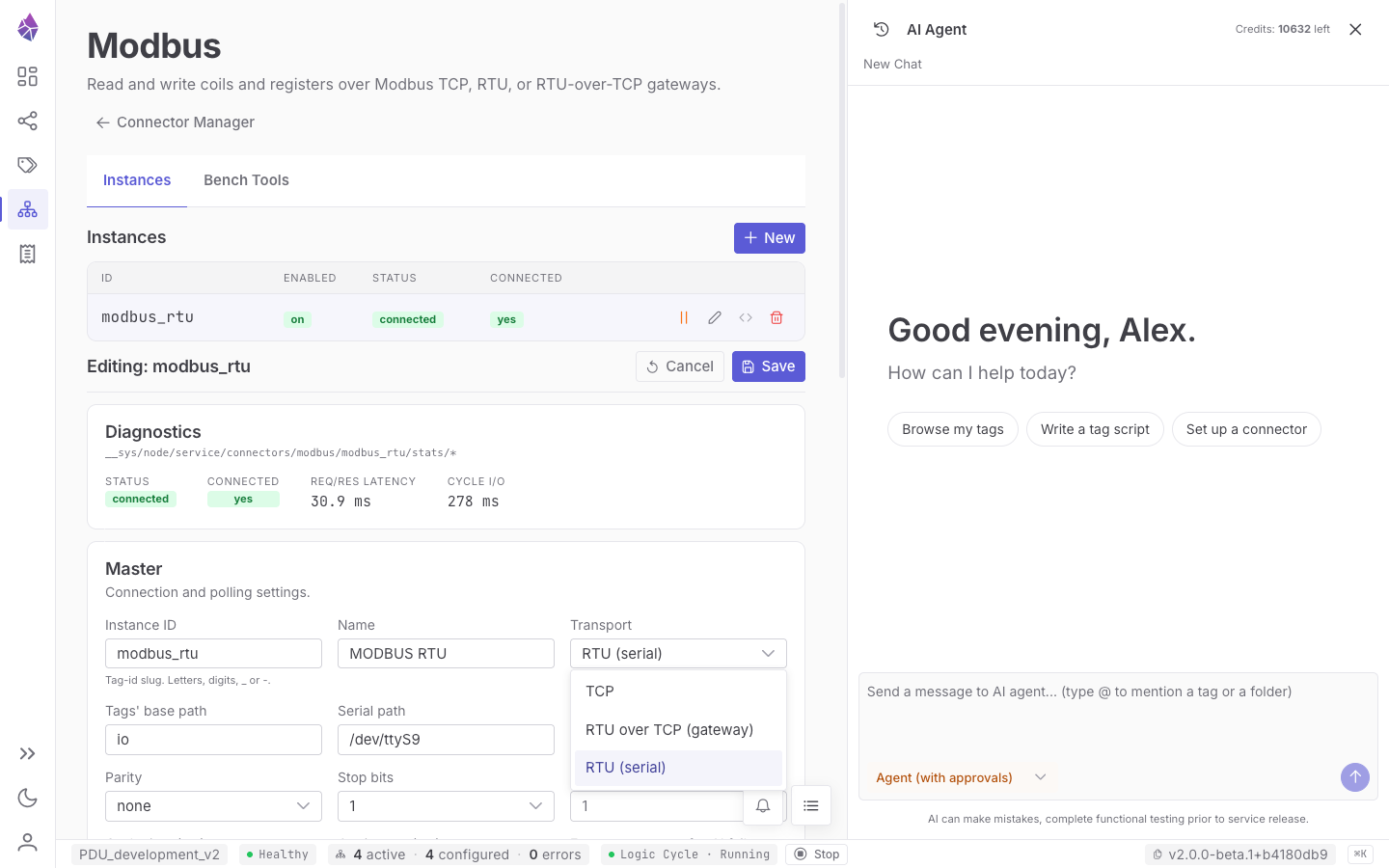
Master (connection & polling):
| Field | What it is |
|---|---|
| Instance ID | The id/slug for this instance (letters, digits, _, -). |
| Name | A human-friendly label shown in the IDE. |
| Transport | How to reach the device (e.g. TCP, RTU). |
| Tags’ base path | The folder the connector creates its tags under. |
| Host / Port | The device address (TCP). |
| Unit ID | The Modbus slave/unit address. |
| Cycle time (ms) | How often the connector polls/exchanges. |
| Op timeout (ms) | How long to wait for a single operation before failing it. |
| Force-reconnect after N failures | Drop and re-open the connection after this many consecutive failures. |
Mapping (one row per value):
| Column | What it is |
|---|---|
| Name | The tag’s name. |
| Sub-path | An optional extra folder under the base path. |
| Space | The register/area (e.g. Holding Registers). |
| Addr | The numeric address. |
| Dir | Direction — in (device→tag) or out (tag→device). See Direction. |
| Type | The data type (e.g. u16). |
| copy / delete (row icons) | Duplicate or remove a mapping row. |
| Filter registers | Filters the mapping list. |
| + Add register | Adds a mapping row. |
Diagnostics panel (read-only, live): the instance’s Status, Connected, request/response
latency, and cycle I/O timing — sourced from
__sys/node/service/connectors/<type>/<id>/stats/*.
Bench Tools
Section titled “Bench Tools”A per-connector-type workbench for direct device access during bring-up and diagnostics, independent of any configured instance. It connects on its own using the Host / Port / Unit ID fields at the top, then offers (for Modbus):
| Tool | What it does |
|---|---|
| Probe device | A read-only scan that reports which addresses respond and which return errors — so you build your config from addresses that actually respond, not from a datasheet alone. |
| Detect byte order | Helps determine the device’s word/byte ordering. |
| Read | Reads specific addresses on demand. |
| Write (marked destructive) | Writes a value directly to the device — use with care; it changes the real device. |
| Run | Executes the selected tool. |
Bench Tools is the fastest way to sanity-check wiring and addressing before you commit a mapping.